CS 46A Lab 6
The Edit-Build-Test-Debug Cycle
Department of Mathematics and Computer Science
San Jose State University
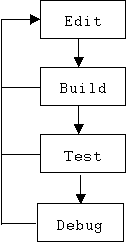
Program development is a cyclic process: edit, build, test, debug, edit, build, test, debug, etc.:
During the edit phase the editor is used to create and modify source code. In the build phase the program is compiled and linked. Errors that pop up during the build phase force programmers back to the edit phase to make corrections. After a successful build phase, program testing begins. Programmers attempt to exercise each path through their program. Sometimes the nature of an error that occurs during the test phase is obvious, and programmers can go directly back to the edit phase to make the necessary corrections. More commonly, test phase errors are subtle and require the use of a debugger to trace the errant path of execution while monitoring the values of suspicious expressions.
Good Advice
Only make a small number of modifications during the edit phase. This will increase the number of loops you make through the edit-build-test-debug cycle, but the complexity and duration of each phase will be much more manageable. There's nothing quite so discouraging as a list of 500 compiler errors. Even after you correct them, there is still the prospect of scores of errors that will turn up during testing.
Building
Compiler Errors
Compiler errors include syntax and type errors that occur in a single source code file. These errors are reported in the output window when you build your program. Double click on the error message, and Visual C++ will show you the offending line of code. Place the mouse cursor in the compiler error code (Cxxx), click once with the left mouse button, then press the F1 key. This displays an IV Topic explaining the general nature of the error.
Always begin with the first error message because the same bug may cause several errors. For this reason it is sometimes a good idea to rebuild your program after fixing a syntax error just to see how many error messages disappear.
Linker Errors
Linker errors occur after all source code files have been successfully compiled and the phrase "Linking ..." appears in the output window. Common causes of linker errors are undefined or multiply defined global variables or functions. If you get stuck, try using the error number (LNKxxx) to locate the IV topic describing the general nature of the error. Link errors sometimes involve the linker options. Select Settings from the Project menu to display the Project Settings dialog box, then select the Link tab to see or change the linker options.
Testing
Program testing can only begin after the program has been successfully compiled and linked. Two types of errors occur during testing: runtime errors and logic errors.
With a runtime error the program begins running, but then crashes or gets stuck pursuing a never ending calculation. With a logic error, the program runs to completion, but simply produces the wrong answer. Logic errors are the worst type of all. The mistake is often in the implementation or choice of algorithm. Sometimes it is necessary to redesign the entire program!
Debugging
There are tricks for discovering the causes of logic and runtime errors. Some programmers insert diagnostic messages in their programs so they can trace the flow of execution. Sometimes the diagnostic messages print the values of suspicious or strategic expressions. Diagnostic messages can also be left in the code if they are conditionally executed:
#define DEBUG true
int fact(int n)
{
if (DEBUG)
cerr << "Entering fact(), n = " << n << '\n';
if (n == 0)
return 1;
else
return n * fact(n - 1);
}
(Hint: Be sure to terminate your diagnostic message with a newline character to force immediate display. Also, sending your diagnostic messages to cerr instead of cout allows you to trace your program even when cout has been redirected to a file or to another program.)
A better solution is to use the Visual C++ debugger. To do this, make sure the active configuration is set to Debug before you build.
The Debugger
Normally, C++ programs are executed by the computer's CPU (Central Processing Unit). VC++ also provides a virtual machine called the debugger that can execute C++ programs (with the help of the CPU). Unlike the CPU, the debugger allows programmers to step through their programs-- one instruction at a time, or one function at a time-- while observing critical variables and expressions.
Close all windows and open the Debug project in the Lab 6 workspace. The entire project consists of a single source file called main.cpp. Besides main(), there are a couple of global variables and three functions: fun1(), fun2(), and fun3(). The program doesn't do much, just some arithmetic, not even I/O. Main() calls fun1(), fun2(), then fun3(). Build and run the project. See? Nothing happens.
Activating the Debugger
Press the F11 key. This activates the debugger. The user interface (UI) changes dramatically. The title bar changes, the menu bar changes, new toolbars appear, and new windows appear.
The debugger UI has five new docking windows: Registers, Memory, Call Stack, Watch, and Variables. In addition to the document window containing main.cpp, there is a new document window titled "Disassembly" that displays the entire contents of memory (the left column shows the hexadecimal addresses), including the assembly language translation of main.cpp. (See the Memory window for the machine language translation.)
The Registers window shows the CPU's registers (EAX, EBX, ECX, EDX, etc.). The Call Stack window shows the name and parameters of the function currently being executed. The other windows are discussed below. Fortunately, most of these windows are only for hard core debugging sessions. Close all toolbars and close all windows except for the main.cpp document window and the Variables docking window. (Use the shortcut menu to do this.)
Tracing Execution
Repeatedly press the F11 key (this is the shortcut key for the "Step Into" option under the new Debug menu). You are executing the program one instruction at a time!
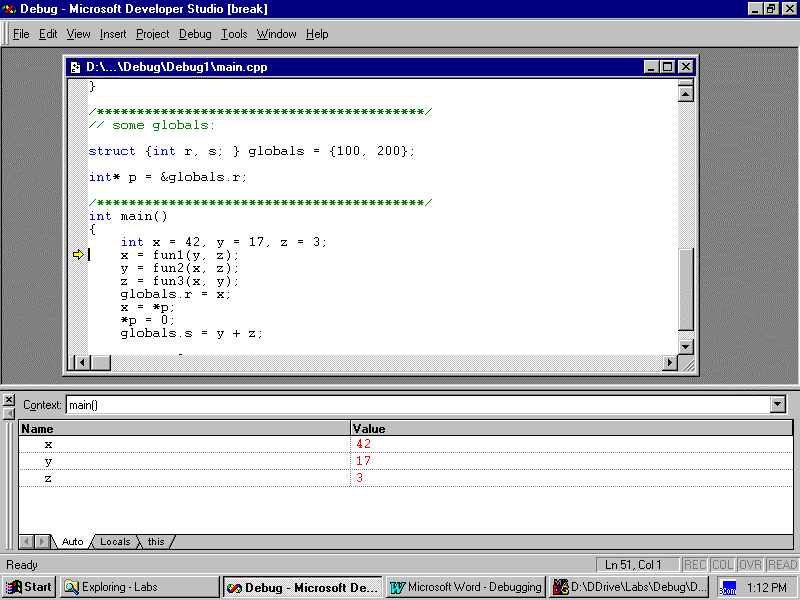
Notice that the instruction pointer (the yellow arrow in the left margin of the main.cpp window) moves, always pointing at the next instruction to be executed. Also notice that the parameters and local variables of the current function (i.e., the function containing the instruction pointer) are displayed in the Variables window.
When main's "return 0" instruction is executed, the program calls a low-level assembly language function that terminates your program. At that point (or at any point) select Restart from the Debug menu to start over again.
This time repeatedly press the F10 key (this is the shortcut key for the "Step Over" option under the Debug menu). You are executing the program one function at a time. In other words, the debugger is treating function calls like indivisible instructions.
The F10 key is useful when the next function called is either bug-free (are you sure?) or a library function. For example, using the F11 key to step into the instruction:
cout << "Hello, Neptune!\n";
pops a window containing the source file containing a (C++, C, or assembly language) definition of the << operator. Unless you really want to see this, press Shift+F11 (step out) (i.e., hold down the Shift key and press F11.) This will cause the debugger to jump to the next statement after the call to the function.
Experiment with this. Restart the debugger, repeatedly press F11 until the instruction pointer points at the second or third instruction of fun1(), then press Shift+F11. What happened?
Running to the Cursor
In most situations a programmer has a rough idea about where her bug is and wants to quickly execute the first part of the program, pausing just before the suspicious instruction. To do this, use the mouse to move the insertion point to just before the suspicious instruction, then select "Run to Cursor" (Ctrl+F10) from the "Start Debug" submenu of the Build menu. This activates the debugger, then runs the program to the insertion point. You may now use the F10 or F11 keys to carefully trace through the remainder of the program.
If the debugger is already activated, position the insertion point, then select "Run to Cursor" from the Debug menu.
Experiment with this. Select "Stop Debugging" from the Debug menu. This stops the debugger and the familiar MSDS user interface returns. Place the insertion point in main just before the call to fun2(), then press Ctrl+F10. What happened? Now move the insertion point to just after the call to fun3() and press Ctrl+F10 again. What happened?
Running to the cursor is especially useful when a program requests user input. In this case the DOS console window (or the program's UI) waiting for the user input remains hidden behind the MSDS window. Pressing the F11 or F10 keys just produces irritating beeps. The instruction pointer doesn't budge! The programmer must uncover the console window and supply the requested input before the program can resume. The best approach is to place the insertion point beyond where the user input is read, then run to the cursor.
Watching Globals and Other Expressions
Restart the debugger again. Close the Variables window and open the Watch window. (Use the shortcut menu to do this.) Select p and globals and drag them from where they are declared in the main.cpp window into the Watch window. In the third line of the Watch window type the expression x + y + z. Press the F11 key twice to step into main().
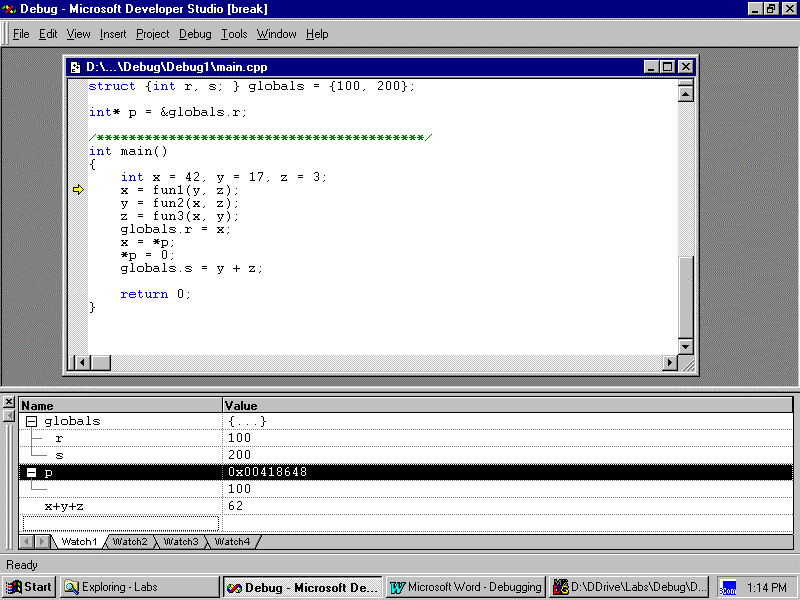
The value of x + y + z (62 = 42 + 17 + 3) is displayed in the Watch window.
Globals is a struct. Press the + sign next to it to display the names and values of its fields. The value contained in p is an address (because p is a pointer). Press the + sign next to p to see the value of the variable it points at. This should be the same as globals.r.
Select "Quick Watch" from the Debug menu (Shift+F9) to display the Quick Watch dialog box. Type the expression x * y * z in the edit control, then press the Recalculate button. The value of x * y * z (2142 = 42 * 17 * 3) is displayed in the list box. Press the Add Watch button to add this expression to the Watch window.
Press the F11 key a few more times. As the instruction pointer enters fun1(), the Watch window displays the error message: "CXX0017: Error: symbol "x" not found" next to the expression x + y + z. This happens because x, y, and z are no longer in scope. When the instruction pointer reenters main(), this message will go away.
What happened to globals.r when the line *p = 0 is executed?
To remove a watched expression, click on the expression in the Watch window, then press the Delete key.